Enter your company information
We begin on the dashboard. Click on settings->Companies>Options>Edit.
Basic information
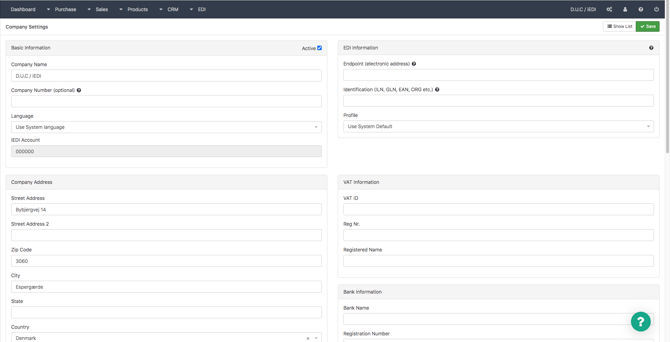
Enter the company name and select your preferred system language.
Company address
Enter the company address under the "Company address" box.
Contact information, Contact Person (accountant), Contact Person (technical)
In these three boxes, you enter the company contact information, information on your accountant as well as information on the technical manager of the company.
In the ID input field, you can enter an abbreviated name for the contacts, e.g. their initials.
Choose your EDI profile
- The Endpoint is where all the electronic appendix ends up. You need to write an endpoint number, so the documents know which endpoint to go to. The Endpoint number can be your EAN or VAT number.
- In the “Identification” input box, type a unique number that identifies your company. It can for example be the company's EAN or VAT number.
- Next, select the EDI profile you want associated with your company. The EDI profile determines how the documents should be exchanged.
PEPPOL is the European EDI format for exchange with European companies.
EDIFACT is the International EDI format.
Contact support if you want to exchange EDI documents in another EDI format.
VAT information
Enter your VAT ID registration number and the legal name of the company.
Bank information, FIK/Giro information
Enter the company bank and FIK / giro information that you find in your bank account.
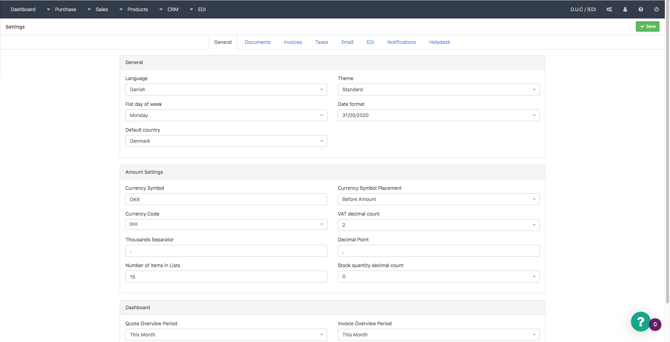
Find “system settings” under the gear in the menu bar. Here you can change language, date format, theme, currency and more.